Photos
How to pixelate part of a photo
A photo or screenshot often shows more than you meant to share: a card number, a face, a plate. You will cover them in this tab and check the copy before sending it.
This covers areas in your own copy. It cannot undo someone else's mosaic. Nothing is uploaded.
Open Photo mosaic & redactContents
List what must go
ID and card numbers, QR codes, phone numbers, addresses, plates, and faces of people who did not agree to be shown.
Open mosaic on cv.cm
Work stays in this tab. Several photos are fine; each keeps its own boxes.
Open Photo mosaic & redactDrop the photo or screenshot
Keep the original. You are making a copy.
Black box for numbers, mosaic for faces
A fine mosaic can leave digits readable. Use a black box for anything someone could type back in, and make each box a little larger than the text.
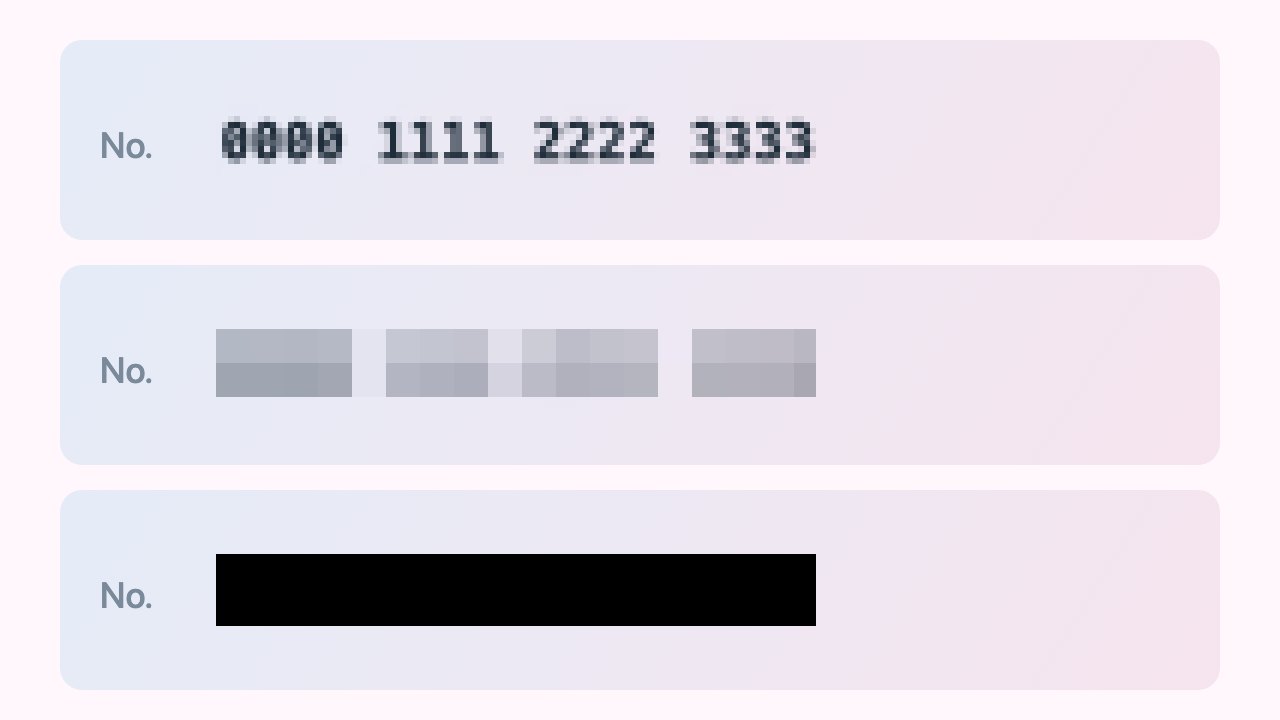
Top: fine mosaic, digits still readable. Middle: coarse mosaic. Bottom: black box, the safe choice for numbers. Drag a box over each item
Undo removes the last box. For an ID copy, add the for-use-only watermark as well.
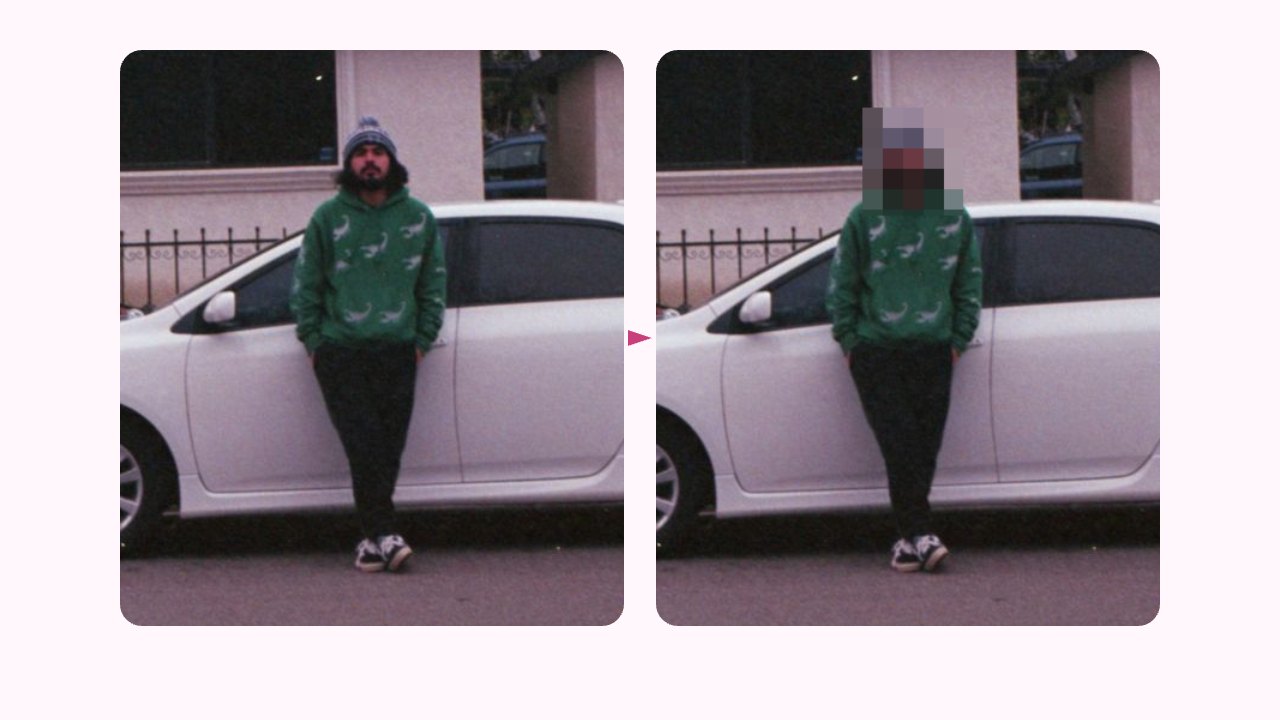
Left: original. Right: the face covered with a coarse mosaic. Download and check at 100%
Zoom in on every box. If you can still guess a digit, black it out and export again.
FAQ
How do I pixelate part of a photo without an app?
Open cv.cm mosaic, drop the photo, drag a box, and download. It runs in the browser; nothing is uploaded.
Is a mosaic enough to hide an ID number?
Not always. Fine cells can leave digits readable. Use a black box for numbers and QR codes.
Can someone remove the mosaic later?
Not from your export. The covered pixels are replaced, not layered on top.
Can I hide faces in a group photo?
Yes. Draw one box per face. Each photo keeps its own boxes.
Is my photo uploaded?
No. Closing the tab discards it.