Photos
How to crop a photo (1:1, 4:5, iPhone)
Cropping throws pixels away. Pick the ratio for the place you will post, move the subject, then reopen the export at 100%. Keep the original.
Open the crop tool when the photo is on disk. HEIC may fail in Firefox — convert to JPG first. Nothing is uploaded.
Open Crop imageContents
Pick the ratio for the destination
1:1 for avatars. 4:5 for a tall feed post (Instagram often shows this). 16:9 for a cover or landscape. 9:16 for stories. Pick the ratio before you move the box.
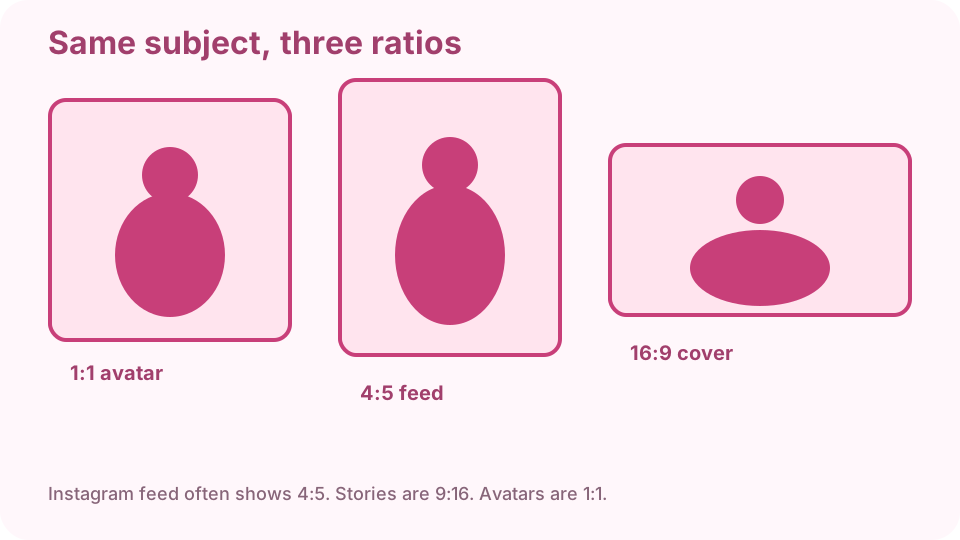
Same subject in 1:1, 4:5, and 16:9. Pick the ratio first. Open crop on cv.cm
Drop the photo. Work stays in this tab.
Open Crop imageSet the ratio, then move the subject
Do not freeform a feed post. Lock 4:5 (or 1:1), then drag. The subject can sit on a third line; that is optional, not a rule.
Walk the four edges
Leave space above the head. Do not cut skull, wrists, knees, or ankles. If they look left, leave space on the left. A half-object on the edge is clutter — pull it in or out.
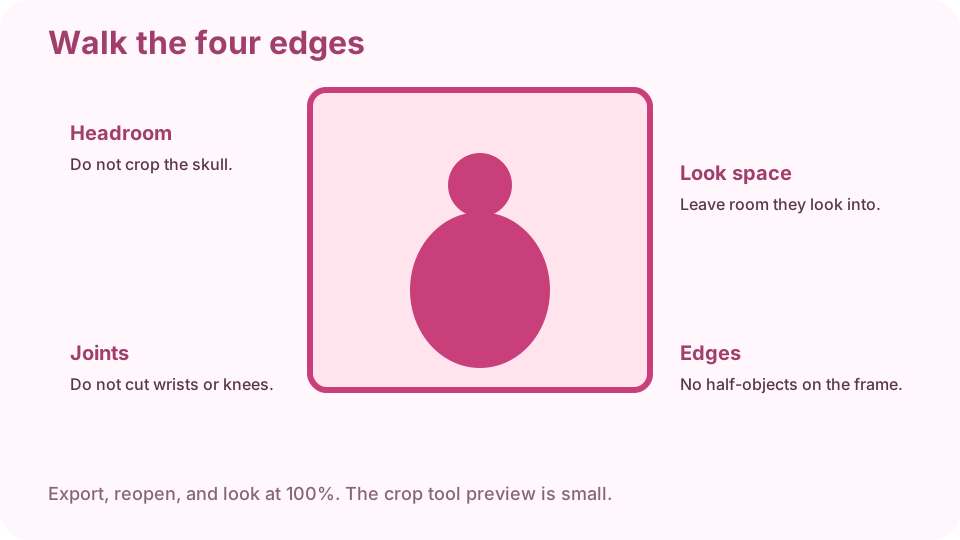
Leave headroom. Do not crop through joints. Reopen at 100%. Download and keep the original
Cropping cannot put pixels back. Keep the uncropped file beside the export.
Reopen at 100%
The crop preview is small. Open the export full size. If an ear is gone, undo from the original — not from the crop.
FAQ
How do I crop a photo on iPhone without the Photos app?
AirDrop or Files the image to a browser tab on cv.cm crop, or convert HEIC to JPG first if the preview is blank.
What size is Instagram?
Feed often shows 4:5 portrait. Avatars are 1:1. Stories are 9:16. Lock the ratio before you drag.
Are photos uploaded?
No. Closing the tab discards the crop.
Should I crop on the phone first?
You can. If you need a precise 4:5 for a desktop post, crop here and keep the original on the phone.
Why does a second crop look worse?
You cropped a crop. Go back to the original file.