PDF and photos
How to split a PDF
You need pages as separate files, or only a range. Split in this tab, then open the download and count.
Open split PDF when the file is on disk. Locked PDFs often cannot split until unlocked. Nothing is uploaded.
Open Split PDFContents
Decide every page vs a range
Each page as its own PDF if you will send them around. A range like 1-3,5 if you only need those pages in one file.
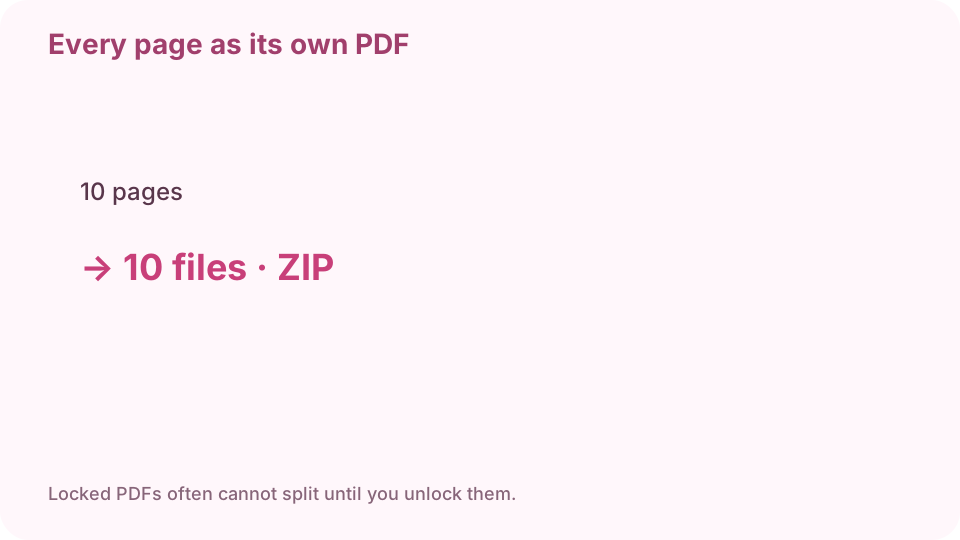
Every page as its own PDF, packed in a ZIP. Open split PDF on cv.cm
Work stays in this tab.
Open Split PDFDrop the PDF and note the page count
If nothing appears, the file may be locked. Unlock it first.
Choose every page, or type 1-3,5
Ranges are inclusive. 1-3 is three pages. A comma starts another span.
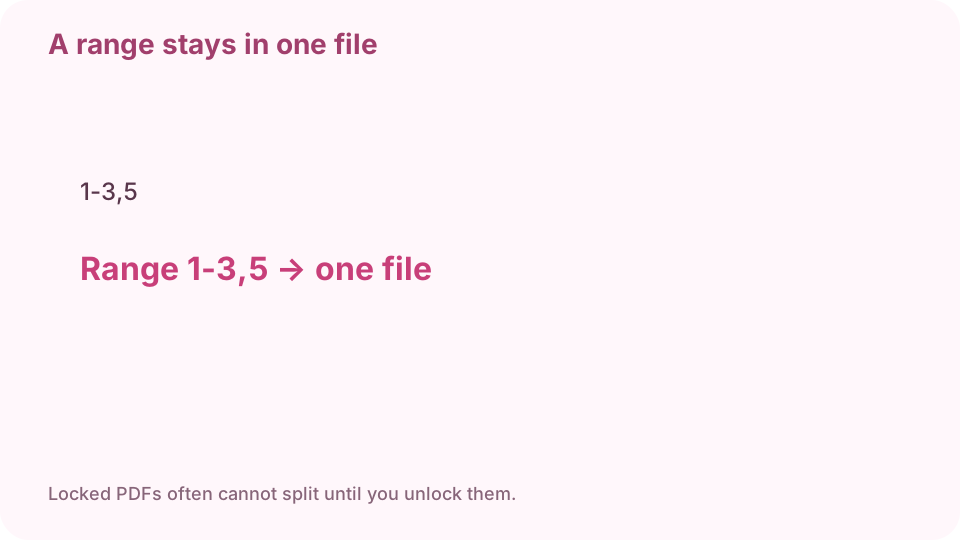
A range like 1-3,5 keeps those pages in one file. Download
Each-page mode packs a ZIP. A range is usually one PDF.
Open and count
Ten pages split each-page should be ten files. A range 1-3 should be three pages in one PDF.
FAQ
How do I split a PDF without Adobe?
Drop it on cv.cm split in this tab. Choose each page or a range. Nothing is uploaded.
Can I extract just pages 1 to 3?
Yes. Type 1-3 and download one PDF with those pages.
What about a password-protected PDF?
Encrypted files often cannot split here. Unlock them first.
Are files uploaded?
No. Splitting uses pdf-lib in this tab.
Will bookmarks survive?
Pages are copied. Bookmarks and forms may be dropped.